Payments are experiencing issues due to temporary restrictions in Russia. If your payment does not go through, please submit a support request.•Our support team is available 24/7 — we are always here to help with hosting and server issues.•We are now accepting requests for dedicated server rental and colocation services in our data center.•Reminder: we recommend enabling backups for additional data protection.•A new VPS/VDS lineup with NVMe storage and improved performance is now available.•Maintenance work on some servers has been completed. All services are operating normally.•
Payments are experiencing issues due to temporary restrictions in Russia. If your payment does not go through, please submit a support request.•Our support team is available 24/7 — we are always here to help with hosting and server issues.•We are now accepting requests for dedicated server rental and colocation services in our data center.•Reminder: we recommend enabling backups for additional data protection.•A new VPS/VDS lineup with NVMe storage and improved performance is now available.•Maintenance work on some servers has been completed. All services are operating normally.•
Аккаунт в General iT
Вход / Регистрация
Войдите или создайте аккаунт для управления услугами в личном кабинете.
Страны не найдены. Попробуйте другое название или код.
MODULE FOR 1C-BITRIX
lion
CRM Card Highlighting
The module enables color highlighting of CRM entity cards — leads, contacts, deals, companies, and smart processes — across all available views: list, pipelines (Kanban), tasks, and calendar.
The module enables color highlighting of CRM entity cards — leads, contacts, deals, companies, and smart processes — across all available views: list, pipelines (Kanban), tasks, and calendar.
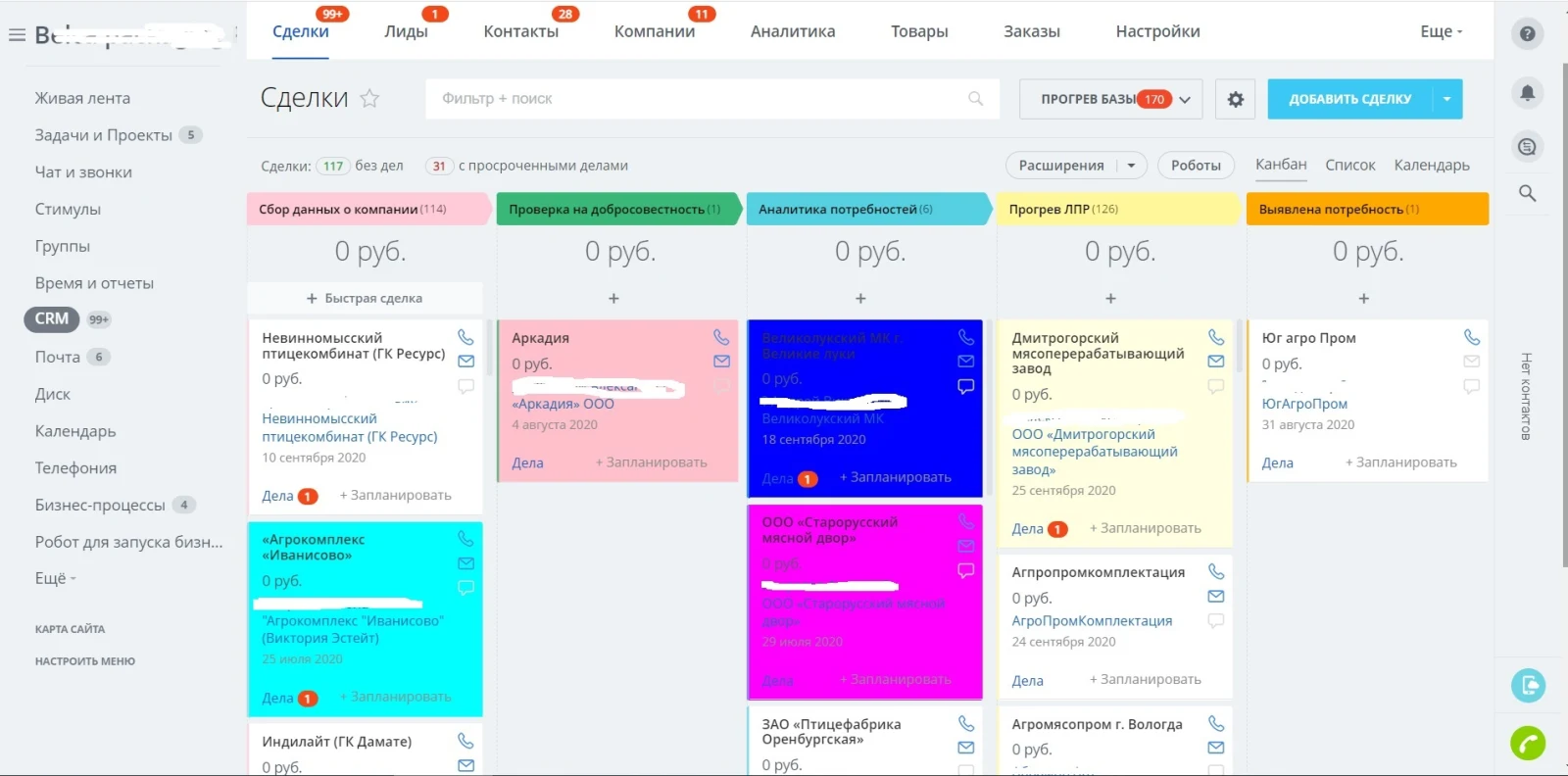
Figure 1 shows an example of deal cards with highlighting in the Kanban view.
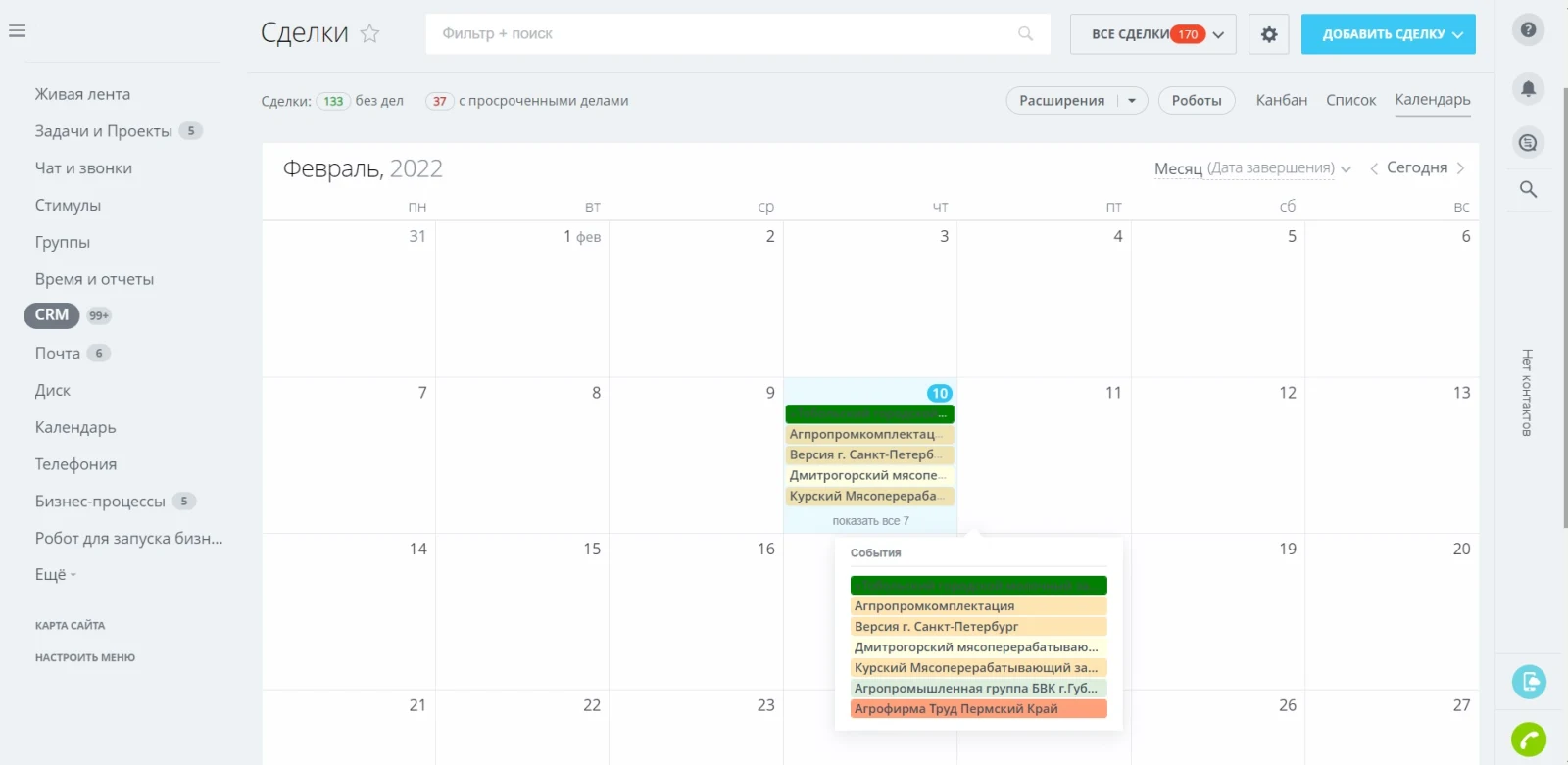
Figure 2 shows an example of deal cards with highlighting displayed in the Calendar view.
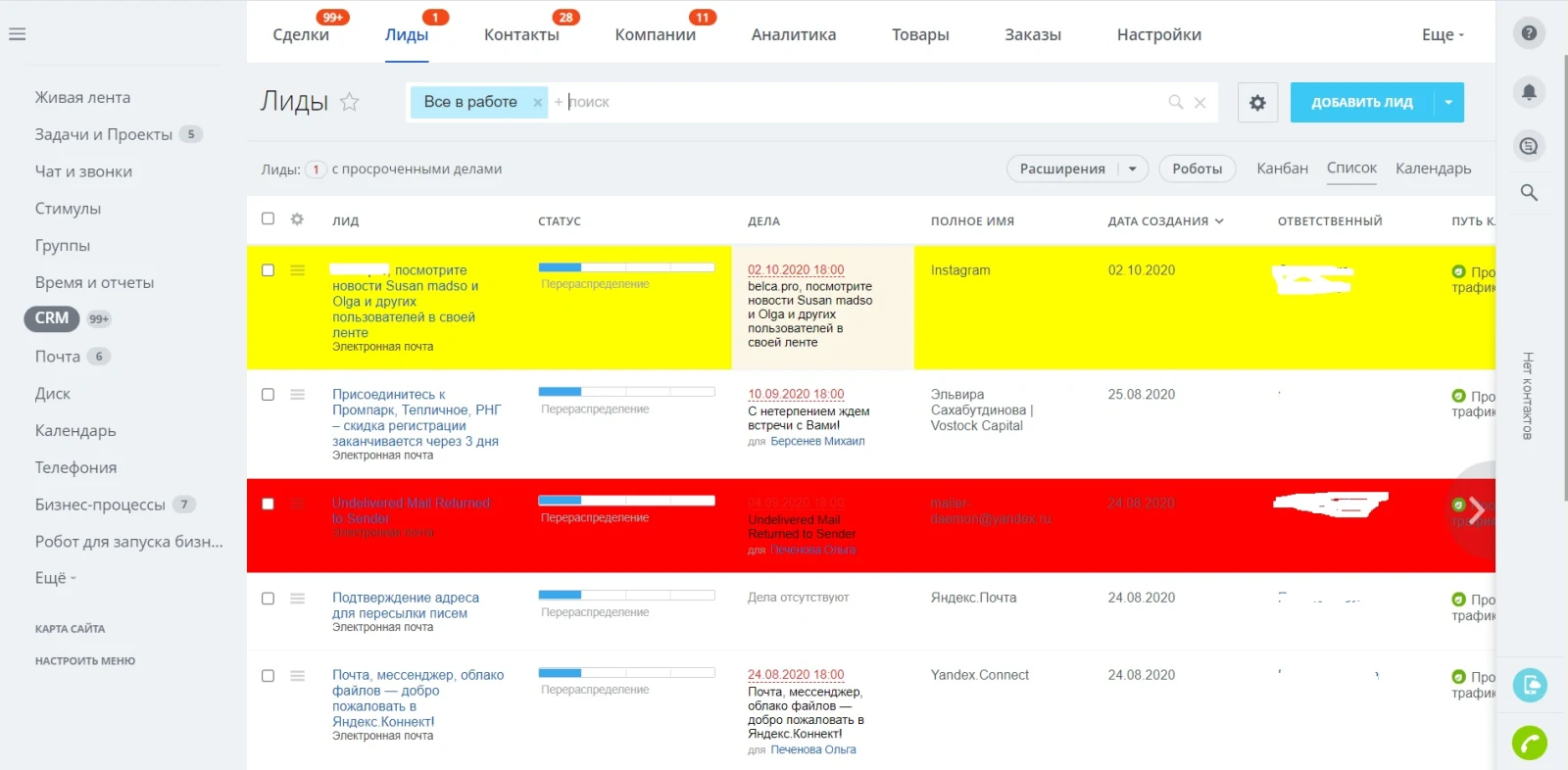
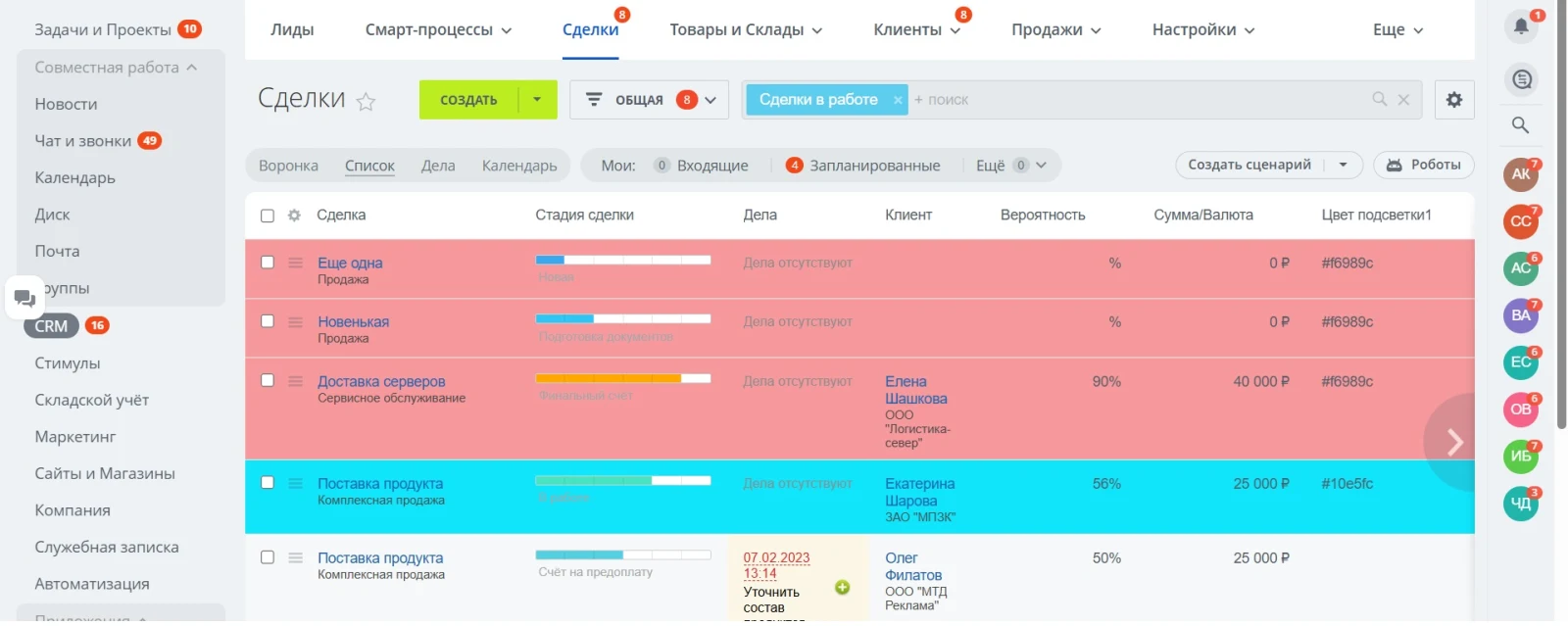
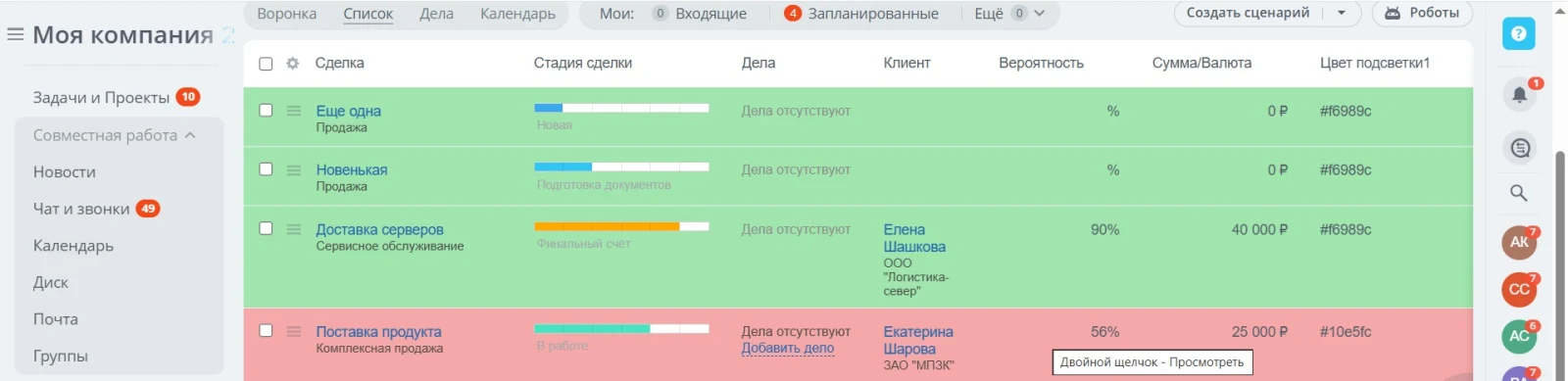
Fig. 3. Example of highlighted deal cards in the "List" view.
Starting with version 1.2, it is possible to highlight smart process cards outside the CRM section, including Bitrix24 workspaces. Since version 1.3, fields of the "List" and "String" types can be used to store data for CRM card highlighting colors.
Highlighting CRM cards using a "String" field
To highlight a CRM card, write the highlight color code into the corresponding "String" field of the CRM entity instance. Only cards containing values in HEX format or color names (e.g., yellow, green, cyan, lightsalmon) will be highlighted.
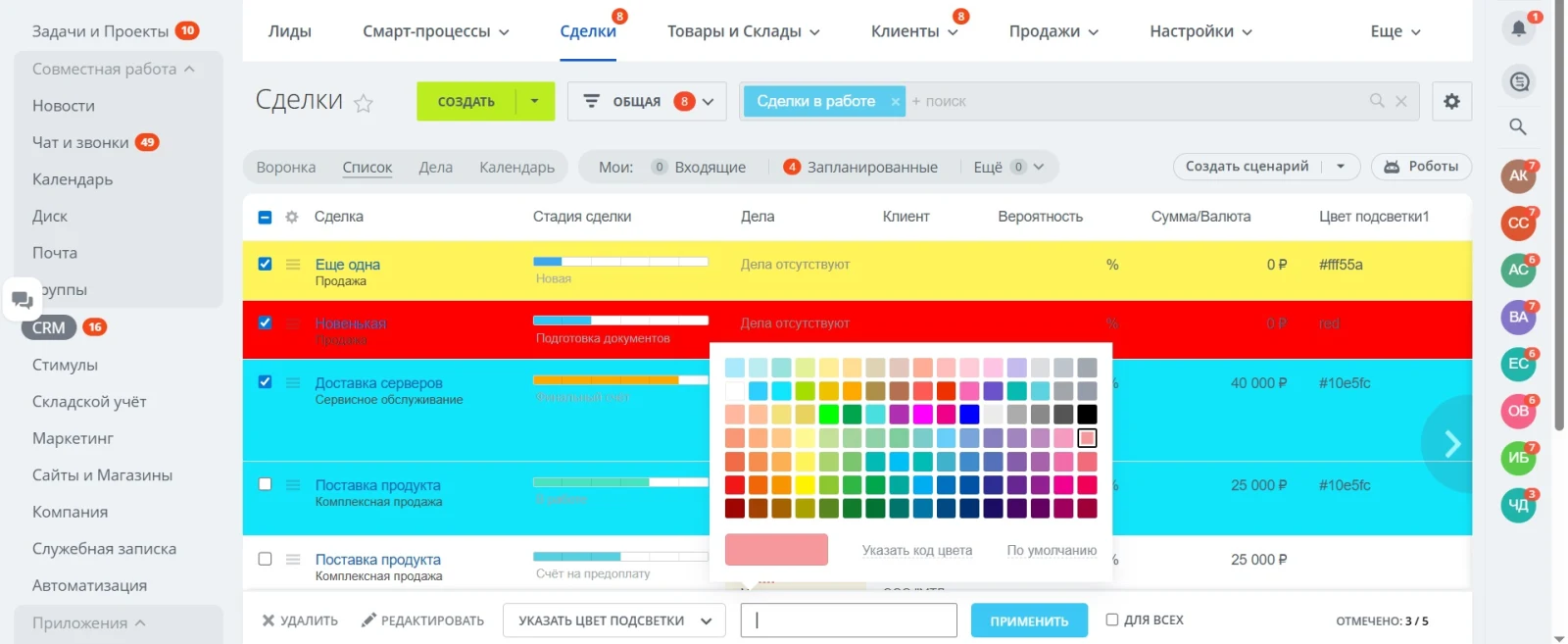
The highlight color changes after the page is refreshed. In the "List" view, it is possible to change the highlight color for multiple deals at once using the "Specify highlight color" menu item in the bulk actions, which opens a field for entering a HEX color code. To change the highlight color for multiple deals, perform the following steps:
Select the checkboxes for the fields in the cards whose highlight color needs to be changed. Click the 'Select Actions' button as shown in Figure 3. In the batch actions menu, choose the 'Set Highlight Color' item. A field for entering the color code will appear, as shown in the image below.
Fig. 4. Example of the 'Highlight Color Code' field display
Click the 'Highlight Color Code' field to open the 'Highlight Color' dialog box.
Select the desired color and click the 'Apply' button. The selected cards will be highlighted in the chosen color.
CRM card highlighting via a 'List' type field
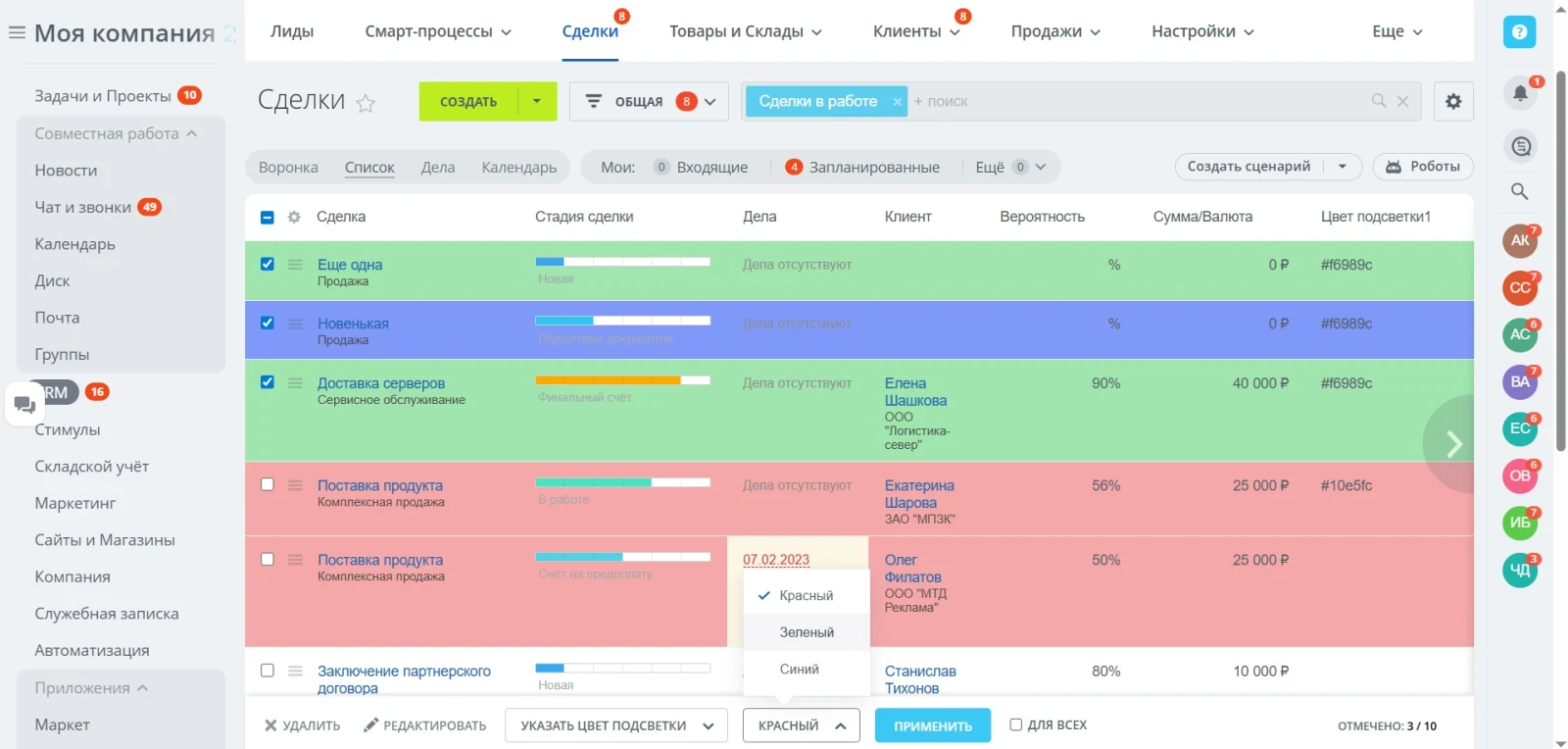
To visually highlight CRM deal cards, enter a highlight color code value into the corresponding 'List' type field. Only cards containing a valid list value in this field will be highlighted.
The 'List' view supports changing the highlight color for multiple deals simultaneously. A new menu item, 'Set Highlight Color', has been added to the batch actions menu. Selecting this item opens a field to choose a color code from the available list elements.
Procedure to change the color for multiple records:
1. Check the boxes for the cards whose color needs to be changed.
2. Click the 'Select Actions' button.
3. In the batch actions menu, choose 'Set Highlight Color'. A field for entering the color code will appear.
Fig. 6 — Example of the 'Highlight Color Code' field display.
To set the color, click the 'Highlight Color Code' field. The 'Highlight Color' dialog box will open.
Select the required color.
Click the 'Apply' button. The selected cards will be highlighted with the chosen color.
The 'CRM Card Highlighting' module by developer lion enables visual highlighting of deals in the interface. The 'Write Color Code' activity is available for creating business process templates. It allows selecting a specific highlight color and returns the chosen color code in additional results, eliminating the need to search for color codes on external resources. When a business process containing this activity runs, the color code is automatically published to the CRM entity instance log.
For “CRM Card Highlighting”, General iT can perform integration, configuration and a final check after installation.
UPDATE HISTORY
What’s new
8 releases
1.4.4 (23.07.2026)Latest update
Technical update.
1.4.2 (27.05.2026)
Technical update.
1.4.1 (22.05.2026)
Module adaptation to the new system version.
Bug fixes.
1.3.5 (02.02.2026)
Technical update.
1.3.4 (27.01.2026)
Technical update.
1.3.3 (27.01.2026)
Technical update.
1.3.2 (23.01.2026)
Technical update.
1.3.1 (23.01.2026)
Technical update.
USER EXPERIENCE
Solution reviews
How does this solution work in a real project? Share your experience and help others choose.
Be the first to share your experience
There are no reviews of this solution on git.ru yet. Tell us what worked well and what could be improved.
✓
Verified purchaseAdd a key if you wish. A verified review gets a badge, priority placement and more rating weight.
↗
Open to every clientJust sign in to your account. A key is optional; all reviews are moderated.
The module enables automatic sending of messages generated by a business process robot to Viber users. It serves as an alternative notification channel, allowing instant alerts about changes to leads, deals, and smart processes.
The solution allows sending messages generated in a business process to a Telegram user via a bot. It serves as an alternative notification channel, enabling instant delivery of messages regarding changes to leads, deals, and smart processes.
The 'Telegram Message' activity is located in the 'Notifications' block of the business process generator.
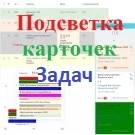
The module provides color highlighting for task cards across all available views: list, deadlines, my plan, calendar, and Gantt chart.
To enable this functionality, a color code must be specified in the task field. The input method depends on the field type selected in the module settings for storing color codes.
The SMSBiz module is designed for sending SMS notifications in online stores and corporate portals built on the Bitrix platform. Installation and usage do not require programming skills. The deployment process takes a few minutes.
The solution is built on the SMSInt service, which has been operating in the market for over 19 years.
The module allows you to quickly add a New Year atmosphere to your website. The package includes falling snow effects and interactive Christmas ornaments positioned at the top of the page.
Order statuses, payments, delivery, products, order properties, and abandoned carts are synchronized with the CRM without manual data transfer. The module connects an online store built on the 1C-Bitrix platform with deals in the Bitrix24 CRM system, ensuring two-way real-time data updates.
The displayed price covers the solution itself. Platform licensing, installation and customisation are checked separately. If the page offers bundles, select the required option before submitting a request.
How do I check compatibility?
Compare the supported editions and solution version in the technical details with your project. Before installing on a live website, we recommend making a backup and checking the solution in a test environment.
How much does this solution’s renewal cost?
The current renewal price is 7,500 ₽. Before you order, a manager will confirm the renewal period and whether it applies to your licence.
Can you help with implementation?
We can help install the module, check its settings and verify how it works in your project. Compatibility with other customisations and the scope of work are assessed before we begin.
Statistics and interaction recording
Public pages use basic statistics. Our recording and Yandex Webvisor require your permission. You can keep basic statistics or disable all analytics.
Operator: General IT Rus LLC, INN 2310208877. Statistics and recording help improve the website.
Basic statistics: pageviews, a random daily ID, a public URL and time. The ID lasts until Moscow midnight. Original records: up to 48 hours; totals: up to 7 years.
Campaign tags and a technical identifier are sent by our server to the existing Yandex tag. Visitor IP, User-Agent and cookies are not included in this transfer. If selected, its browser code collects technical data, cookies, actions and masked page snapshots; recordings last 15 days. Inputs, chat and account areas are hidden.
Interaction recording requires permission: clicks, scrolling, technical information and filtered public-page snapshots. Events: up to 7 years; IP and snapshots: up to 90 days.
Permission is remembered for up to 365 days; full opt-out remains until changed. Basic statistics only disables recording; Disable all analytics stops new analytics. Previously sent data is not automatically deleted. Withdrawal and requests: support@git.ru. Full terms are linked below.
Your browser requests no tracking: analytics is off.