Payments are experiencing issues due to temporary restrictions in Russia. If your payment does not go through, please submit a support request.•Our support team is available 24/7 — we are always here to help with hosting and server issues.•We are now accepting requests for dedicated server rental and colocation services in our data center.•Reminder: we recommend enabling backups for additional data protection.•A new VPS/VDS lineup with NVMe storage and improved performance is now available.•Maintenance work on some servers has been completed. All services are operating normally.•
Payments are experiencing issues due to temporary restrictions in Russia. If your payment does not go through, please submit a support request.•Our support team is available 24/7 — we are always here to help with hosting and server issues.•We are now accepting requests for dedicated server rental and colocation services in our data center.•Reminder: we recommend enabling backups for additional data protection.•A new VPS/VDS lineup with NVMe storage and improved performance is now available.•Maintenance work on some servers has been completed. All services are operating normally.•
Аккаунт в General iT
Вход / Регистрация
Войдите или создайте аккаунт для управления услугами в панели.
Страны не найдены. Попробуйте другое название или код.
MODULE FOR 1C-BITRIX
Profi
Merchandiser: Product Sorting
The 'Merchandiser: Product Sorting' module for 1C-Bitrix: Site Management enables configuration of the display order for products and trade offers in the catalog. Sorting is performed by various criteria: price, date, availability, discount, popularity, number of orders, section ID, alphabetical order, and other product properties.
The 'Merchandiser: Product Sorting' module for 1C-Bitrix: Site Management enables configuration of the display order for products and trade offers in the catalog. Sorting is performed by various criteria: price, date, availability, discount, popularity, number of orders, section ID, alphabetical order, and other product properties. The tool provides automatic and flexible control over product placement.
Flexible sorting configuration helps optimize commercial metrics such as conversion rates and order totals. Standard methods, such as sorting solely by price, can result in items with low prices but low demand or out-of-stock status appearing at the top of the list. This reduces the likelihood that visitors will see liquid products with slightly higher prices, especially when the assortment is large. The module addresses these issues by allowing the arrangement of products to align with business objectives.
Sorting via the module is available in components inheriting from the \Bitrix\Iblock\Component\ElementList class starting with iblock module version 20.0.400. The tool is designed for experienced users who have completed at least the 'Content Manager' course.
To fully utilize the module's capabilities, it is recommended to implement it jointly with a developer and a professional marketer. Best practices include applying different rules for different product categories, conducting tests, and performing analytics.
The module supports an unlimited number of sorting configurations and an unlimited number of rules per configuration. Sorting conditions can be multi-level, combined, and grouped. Logical operators 'AND' and 'OR' are available, along with comparison conditions: 'equals', 'not equals', 'greater than or equals', 'less than or equals', 'greater than', 'less than', 'contains', and 'does not contain'.
Supported sorting directions include: ascending, descending, ascending with empty values at the start, ascending with empty values at the end, descending with empty values at the start, and descending with empty values at the end.
The module calculates individual sorting values for each product and automatically updates them based on standard Bitrix events. Agents can be configured to recalculate values when dynamic properties are used in sorting rules.
Sorting rules can be built using product properties (SKU, image, dimensions, manufacturer, promotions, bestsellers, etc.), parameters (availability, stock quantity, price, purchase cost, type), sales and impression statistics (considering order status and period), custom fields by symbolic code, element and section IDs, the current sorting index, name and code, creation or modification date, activity status (including start and end dates), presence of an image or description, external code, and tags.
The module is installed using standard Bitrix tools. It is ready to use immediately after installation without additional configuration.
The Merchandiser: Product Sorting module enables configuration of product display order within the catalog. Working with the tool involves two main scenarios: modifying an existing sorting algorithm and creating a new sorting rule with visible control elements.
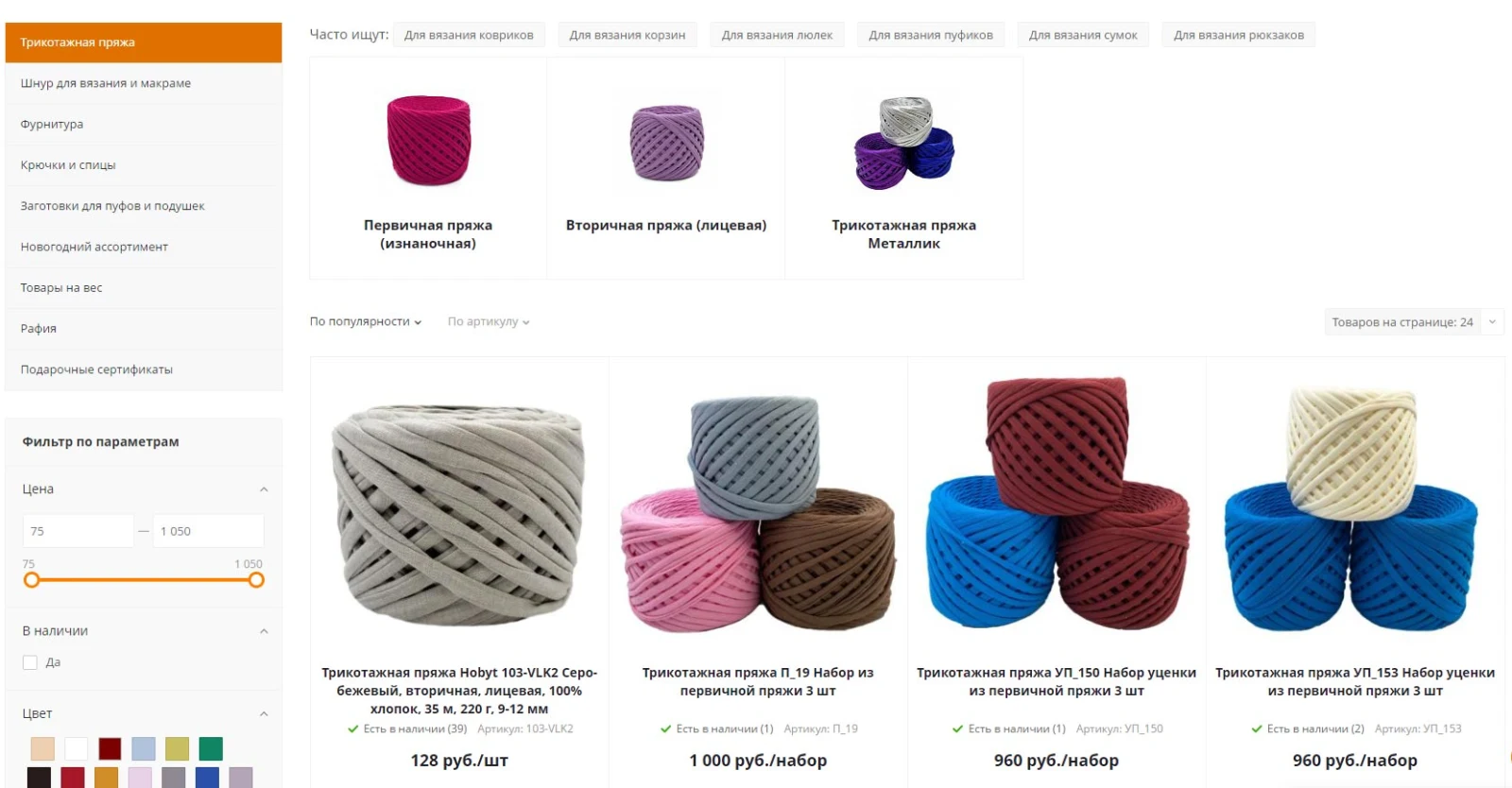
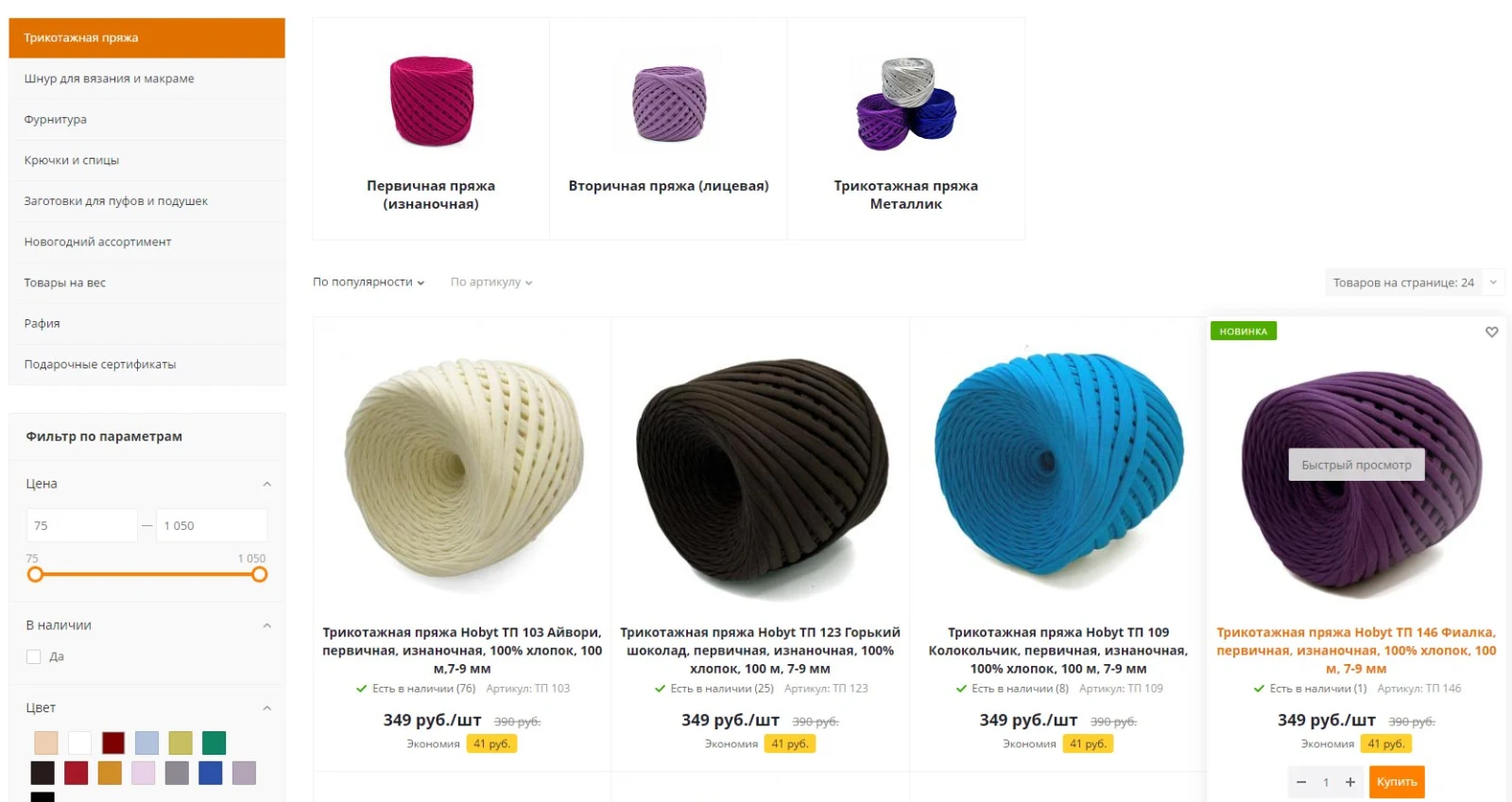
The first scenario is illustrated by a yarn e-commerce store. The primary product is Standard primary knitting yarn (sold per roll). In the catalog hierarchy, it is located at: Catalog — Knitting Yarn — Primary Yarn — Standard. When accessing the parent section 'Knitting Yarn', the default sorting by popularity is applied. Consequently, items from all subcategories, including secondary yarn and kits, appear at the top of the list, which may not align with the store's priorities.
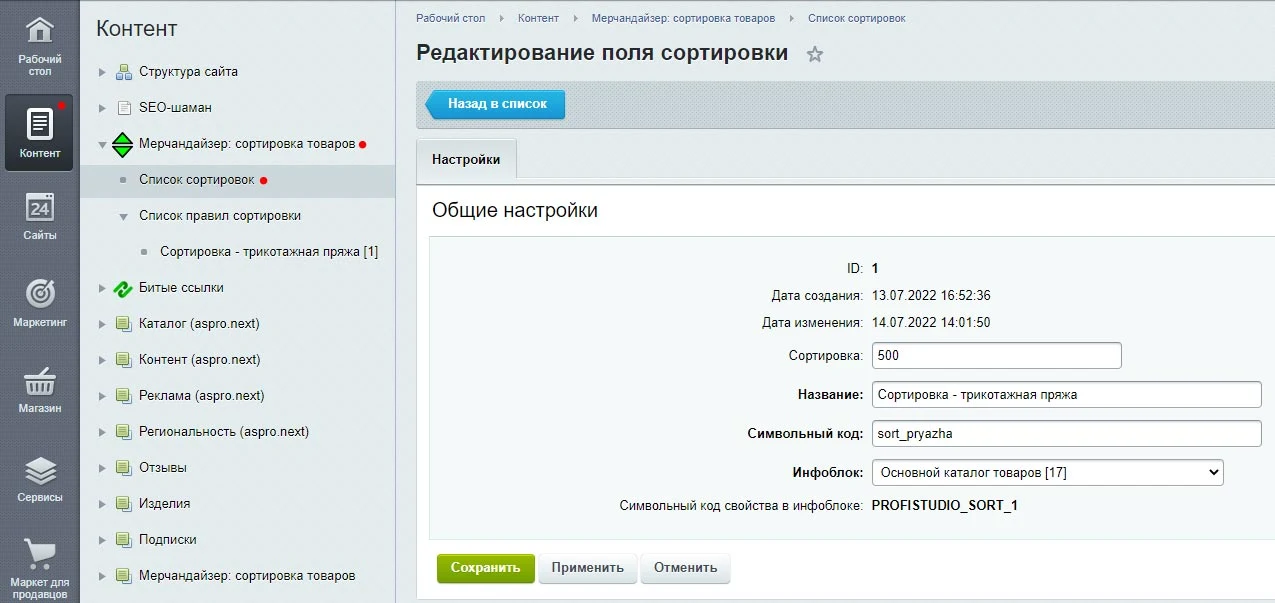
The module enables configuring product display in the 'Knitting Yarn' section with priority for the 'Primary Knitting Yarn Standard' subcategory, sorting by availability and ascending price. After installation, navigate in the admin panel to 'Content' — 'Merchandiser: Product Sorting' — 'Sorting List' and click '+ New Sorting'. On the creation page, specify the sorting name, symbolic code, select the information block containing your product catalog, and save the settings.
To create a sorting rule, navigate to Content → Merchandiser: Product Sorting → Sorting Rules List. Select the previously created sorting and click the + New Sorting Rule button.
A combined rule considers multiple conditions. The module calculates a unique sorting value for each product based on these conditions and stores it in a separate module information block. This value is used to sort products by multiple properties simultaneously. Since product properties (such as price or availability) can change at any time, it is necessary to keep the calculated values up to date. To ensure this, the module provides a function to create agents for automatic recalculation.
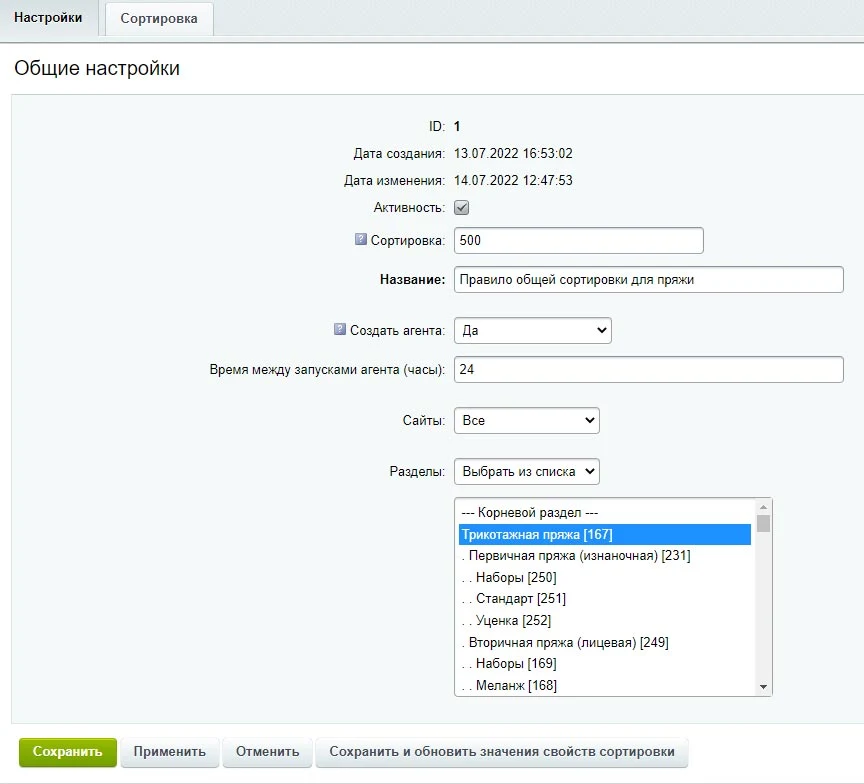
On the sorting rule settings page, enter the rule name. In the Create Agent field, select Yes. Then choose the required site from the list and specify the main section, for example, Knitting Yarn. Click the Apply button.
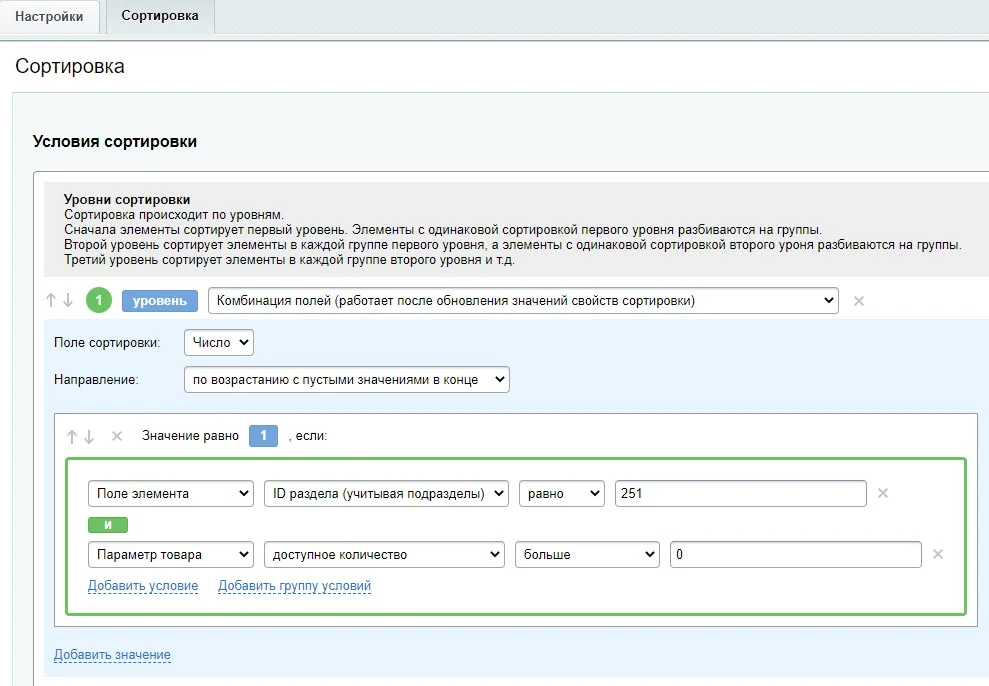
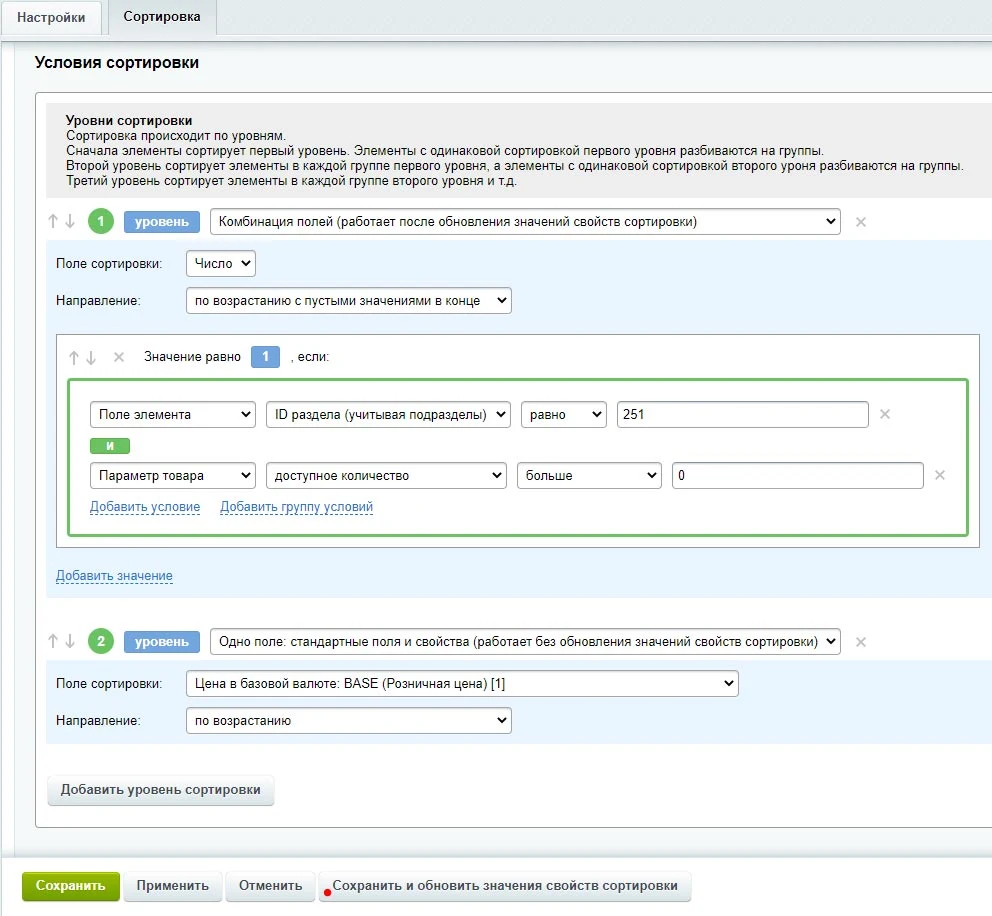
On the Merchandiser module page, navigate to the Sorting tab to configure product distribution rules. The system employs a multi-level logic: first, Level 1 sorting groups elements with identical values. Then, within each such group, Level 2 sorting is applied to further divide elements into subgroups, and the process continues for subsequent levels.
For the first level, select the 'Field Combination' option. Here, each product is assigned a specific numeric sorting value that determines its position in the overall sequence. This value is calculated based on product data.
Click 'Add Value' and set conditions using logical operators. This allows you to define which specific products should be assigned the new sorting value.
The module enables filtering products from a subcategory with ID 251, retaining only items with a quantity greater than zero using the logical operator AND. The first stage selects products matching these criteria. The second stage sorts the results by price in ascending order. For this level, a single standard price field is used without combining multiple fields. After specifying the sort direction and clicking the button labeled "Save and Update Sort Property Values", the calculation is performed. The final configuration is integrated into the site template by adding the required code.
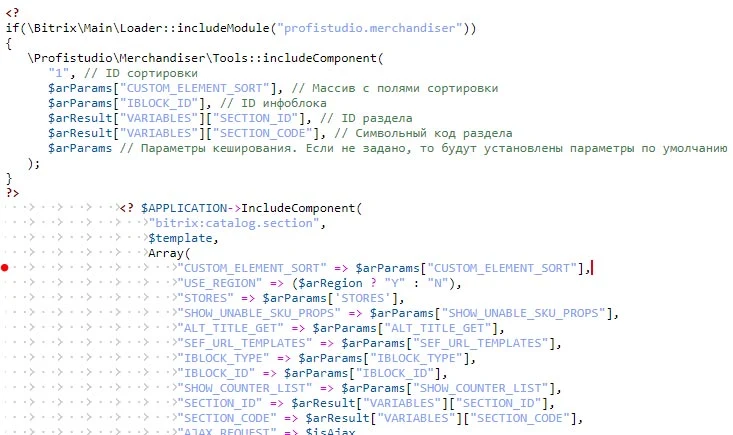
To configure product sorting using the Merchandiser module, add the CUSTOM_ELEMENT_SORT parameter to the parameters of a component that inherits from the Bitrix\Iblock\Component\ElementList class. This parameter must contain an array of sorting fields, which should be generated before calling the component via the Profistudio\Merchandiser\Tools::includeComponent method.
The example uses the Aspro: Next ready-made online store solution. The template containing the bitrix:catalog.section component declaration is located at the path bitrix/templates/aspro_next/components/bitrix/catalog/main/page_blocks/list_elements.php.
Code for initializing the sorting array:
if (Bitrix\Main\Loader::includeModule("profistudio.merchandiser")) {
To configure product sorting in the Merchandiser module, specify the identifier of a previously created sorting rule. In this example, the identifier is 1. Place this code snippet before including the bitrix:catalog.section component. Add the CUSTOM_ELEMENT_SORT key to the component parameters array, assigning it the value from the $arParams array (CUSTOM_ELEMENT_SORT => $arParams["CUSTOM_ELEMENT_SORT"]).
Save the changes and refresh the category page for which the sorting was created. Products will be displayed according to the specified conditions, regardless of the default sorting settings.
Connecting the module via code enables flexible configuration of template parameters by a developer based on specific conditions. This allows a custom sort order to be applied not by default, but only when a particular standard sort order is selected. This approach permits precise modification of the algorithm's behavior, for instance, when the 'By Price' sort is chosen, replacing the standard logic with custom functionality.
Creating a new sort order with control elements follows the same procedure as the previous step. In this example, simpler sort orders are created for the same catalog section, with attention focused on component parameters and sort control elements.
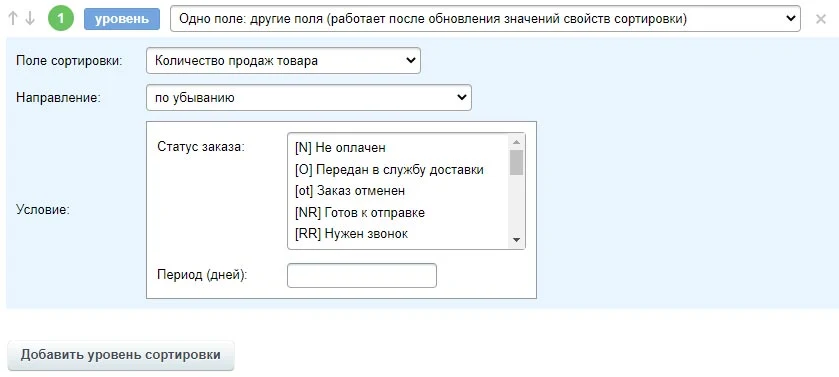
The 'Merchandiser: Product Sorting' module by Profi enables the creation of rules for grouping products. The example configures two sorting profiles: 'Buyers - Many' and 'Buyers - Few'. Each profile is assigned a single rule containing one sorting level. The primary evaluation field is 'Product Sales Count'. When defining the rule, users must specify the sorting direction, order status, and the calculation period. The setup for the first level of the 'Buyers - Many' sorting profile illustrates the application of these parameters.
To ensure proper operation of the module, agents must be configured because sales volumes vary and require regular updates to sorting parameters.
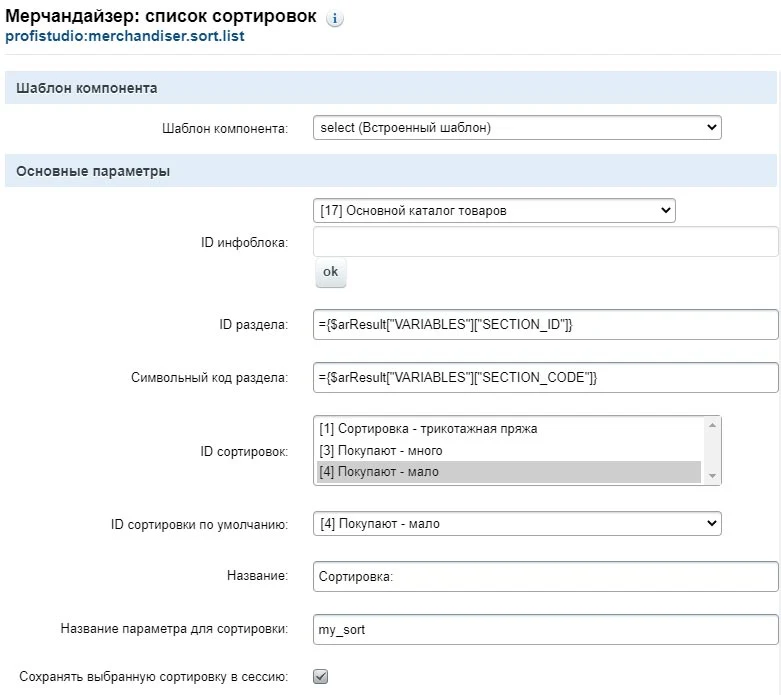
In the template code for the bitrix:catalog.section component, replace the previous implementation with a call to the profistudio:merchandiser.sort.list component using the select template parameter. This component provides a dropdown list for selecting a sorting option.
When initializing the component within the $arParams array, specify the information block identifier in the IBLOCK_ID field. The example uses the value 17, which corresponds to the catalog. All other parameters, including the section code and ID, the list of available sorting options, the default value, the label, the sorting parameter name, the session storage setting, and caching parameters, are configured in the public part of the component.
The component supports two display modes: .default for link-based output and select for a dropdown list. Caching is set to automatic mode with a storage duration of 36000000 seconds.
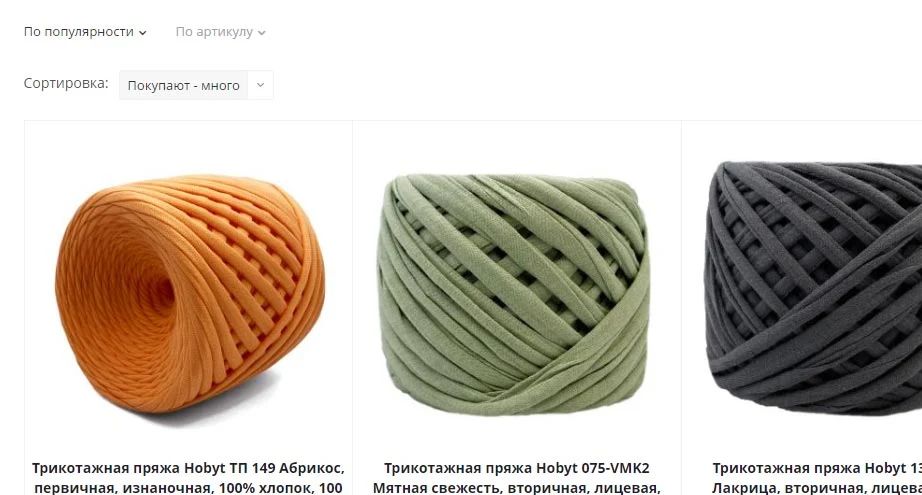
After saving changes, navigate to the catalog section. In the public part of the site in edit mode, the 'Merchandiser: Sorting List' component is displayed. The parameters of this component can be modified.
The component template setting defines the display method for sorts: as buttons (value .default) or as a dropdown list (value select).
In the Sort IDs field, specify the identifiers of two previously created sorts that should be displayed. One of these options is selected as the default sort ID.
The Name field sets the header for the list of available sorts. The Sort parameter name is displayed in the browser address bar when a sort is applied.
The Save selected sort to session option must be enabled if the user's choice needs to be remembered across page reloads.
After applying the settings, the interface updates according to the configuration. The default sort can be removed to retain only the custom options.
The 'Merchandiser: Product Sorting' module by Profi is designed for organizing the product sorting process.
The description also lists additional solutions for online stores that may be useful for active marketing and efforts to increase profit: a module for changing cart price types based on conditions, a module for quick SEO links in the product catalog, a module for automatic generation of SEO settings (including meta tags and sitemaps) for smart filter pages, and a module for targeted SEO configuration for parameter pages such as smart filter and search pages.
General iT can connect “Merchandiser: Product Sorting”, install and configure the module, and make sure the integration works correctly.
UPDATE HISTORY
What’s new
1 releases
1.2.2 (17.10.2025)Latest update
1. In sorting conditions, functionality has been added to select elements and sections of the information block in a separate window from the list
2. Improvements in the administrative part
3. Minor enhancements and fixes
USER EXPERIENCE
Solution reviews
How does this solution work in a real project? Share your experience and help others choose.
Be the first to share your experience
There are no reviews of this solution on git.ru yet. Tell us what worked well and what could be improved.
✓
Verified purchaseAdd a key if you wish. A verified review gets a badge, priority placement and more rating weight.
↗
Open to every clientJust sign in to your account. A key is optional; all reviews are moderated.
The 'Sitemap with Auto-Generation and Filters' module for '1C-Bitrix: Site Management' provides automatic creation and updating of the sitemap.xml file. It allows filtering URL elements and sections of information blocks for inclusion in the sitemap based on specified rules, parameters, and properties.
The module automatically applies individual SEO settings to smart filter pages generated based on specified conditions. It supports various templates that can include product and offer property names and values, as well as section names, section properties, and descriptions.
Planograph is a tool for creating interactive maps in minutes. The online constructor is available for websites built on WordPress, Joomla, Tilda, Wix, MODx, OpenCart, DLE, and other CMS platforms.
The software is easy to install and use.
The Sotbit Smart Filter SEO module is designed to increase online store traffic. The tool operates by generating numerous unique pages for smart filters.
The module automates image compression on the website in accordance with Google PageSpeed Insights recommendations. It supports integration via CDN OptiPic, allowing optimization without modifying image URLs. The main advantage of CDN integration is the automatic conversion of images to the modern WebP format to minimize file size. Browsers that support WebP receive images in that format.
The module is designed for online stores running on the 1C-Bitrix platform to automate the integration of supplier product catalogs. It is also suitable for news and city portals to facilitate content population. The solution supports data import in Excel, XML, YML, CSV, and RSS formats.
The displayed price covers the solution itself. Platform licensing, installation and customisation are checked separately. If the page offers bundles, select the required option before submitting a request.
How do I check compatibility?
Compare the supported editions and solution version in the technical details with your project. Before installing on a live website, we recommend making a backup and checking the solution in a test environment.
Is there a trial?
The developer lists a trial of 7 days. The trial button opens the installer in your website control panel. Check the required features and compatibility before purchasing.
How much does this solution’s renewal cost?
The current renewal price is 9,750 ₽. Before you order, a manager will confirm the renewal period and whether it applies to your licence.
Can you help with implementation?
We can help install the module, check its settings and verify how it works in your project. Compatibility with other customisations and the scope of work are assessed before we begin.
Statistics and interaction recording
Public pages use basic statistics. Our recording and Yandex Webvisor require your permission. You can keep basic statistics or disable all analytics.
Operator: General IT Rus LLC, INN 2310208877. Statistics and recording help improve the website.
Basic statistics: pageviews, a random daily ID, a public URL and time. The ID lasts until Moscow midnight. Original records: up to 48 hours; totals: up to 7 years.
Without Webvisor permission, Yandex receives server statistics without visitor IP, User-Agent or cookies. If selected, its browser code collects technical data, cookies, actions and masked page snapshots; recordings last 15 days. Inputs, chat and account areas are hidden.
Interaction recording requires permission: clicks, scrolling, technical information and filtered public-page snapshots. Events: up to 7 years; IP and snapshots: up to 90 days.
Permission is remembered for up to 365 days; full opt-out remains until changed. Basic statistics only disables recording; Disable all analytics stops new analytics. Previously sent data is not automatically deleted. Withdrawal and requests: support@git.ru. Full terms are linked below.
Your browser requests no tracking: analytics is off.